
You can start nonstop streaming in SAIUNES with a prerecorded MP4 and the connection details from your chosen RTMP destination. The source does not need to be recorded live, and your computer does not need to keep sending it after the stream starts.
What You Need
Prepare three things:
- An MP4 that you own or have permission to broadcast
- The destination RTMP server URL
- The destination's private stream key
The receiving platform supplies the URL and key. Depending on current account eligibility, the destination may be YouTube, Facebook, Twitch, Kick, TikTok, Instagram, or another RTMP-compatible service.
Read what an RTMP stream key is and keep that credential private.
Step 1: Open Live Studio
Open SAIUNES Live Studio and select Create stream. This opens the form that connects the destination and video in one process.
Step 2: Add the Destination and MP4
Enter a clear stream name. Paste the RTMP destination URL and private stream key into their matching fields, then select the prerecorded MP4.
Check the URL and key carefully. Do not include accidental spaces and never expose the key in a public screenshot.
Step 3: Select Create Stream
Select Create stream at the bottom of the form. SAIUNES uploads and processes the selected video.
Processing typically takes about 10 seconds to 1 minute depending on the video's duration and file size; larger files may take longer. Wait until the stream becomes Ready before trying to broadcast.
The more detailed illustrated form guide is available in how to stream prerecorded videos live 24/7.
Step 4: Review the Ready Stream
When processing finishes, Live Control shows the source, relay, destination, and Ready state.
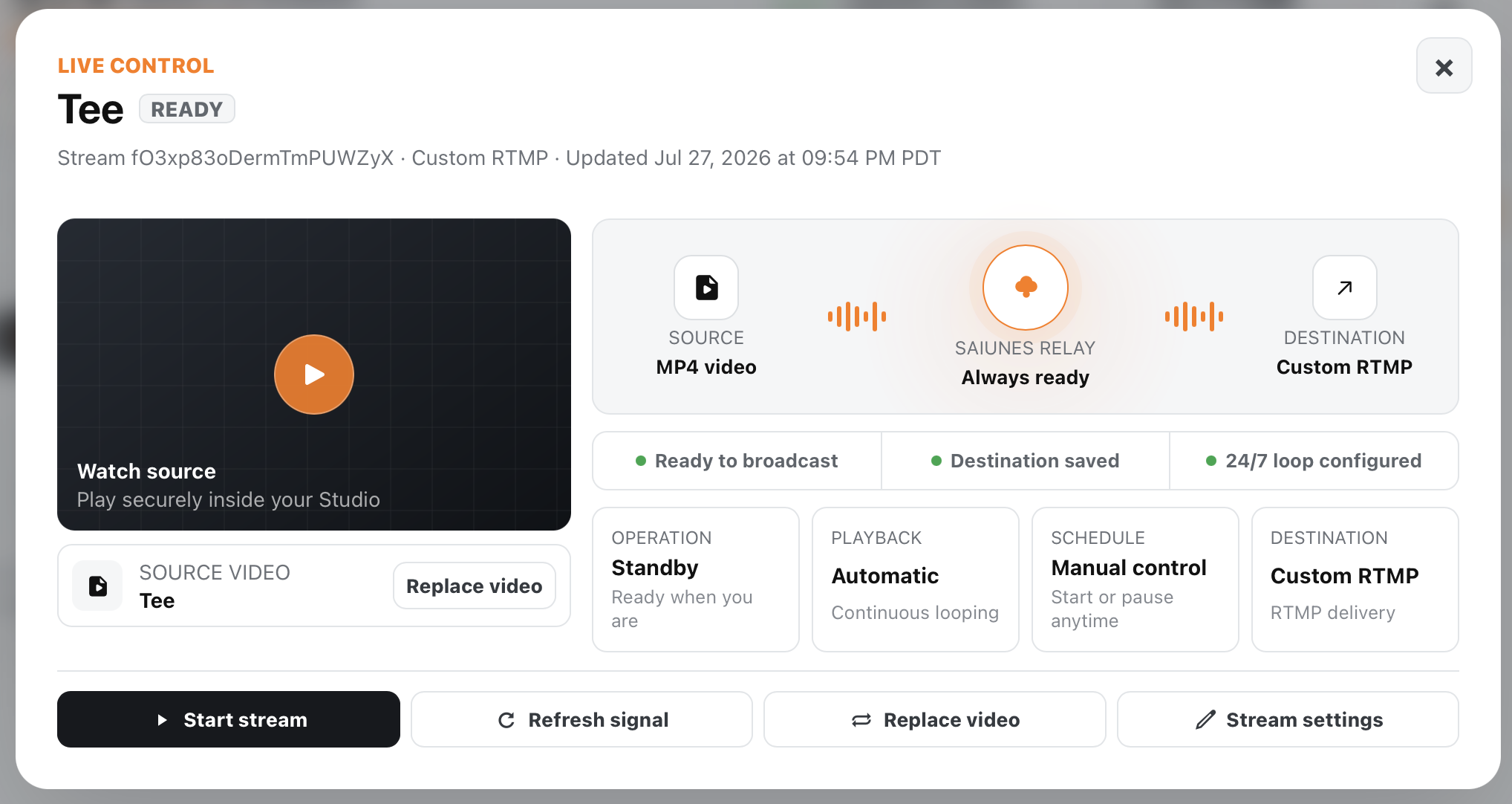
Confirm that the intended MP4 and destination are selected. You can preview the source inside the Studio before beginning.
Step 5: Start Now or Schedule
Select Start stream. Choose Start now to begin immediately, or Schedule start to select a future local date and time.
Next choose Run non-stop to continue until you pause manually, or Schedule pause to choose a future stopping time. The stream scheduling guide explains these choices in detail.
Step 6: Verify the Destination
Open the receiving platform and check the live event as a viewer. Confirm video, audio, title, visibility, and connection health. Some platforms require another go-live confirmation inside their own control room.
If the signal is missing, use the RTMP destination guide to verify both connection values.
Manage the Stream Responsibly
A prerecorded live stream still needs periodic review. Monitor destination warnings, keep content accurate, protect licenses, and replace outdated videos. No service can guarantee that an external destination will never experience an outage or policy interruption.
One Clear Nonstop Workflow
24/7 video streaming with SAIUNES follows one sequence: create the stream, add destination details, select the MP4, wait for Ready, and choose its start and pause behavior. That keeps the ongoing broadcast online while leaving you in control of the content and schedule.
