
Prerecorded live streaming lets you broadcast an existing MP4 as a continuous live feed. SAIUNES keeps the setup focused: add the destination, select the video, create the stream, and choose when it runs.
Open SAIUNES Live Studio and follow these steps.
Step 1: Select Create Stream
From the Live Studio header, select Create stream.
This opens the Add Stream form where the destination and source video are configured together.
Step 2: Enter the Destination and Select the MP4
Give the stream a clear name. Then paste the destination RTMP URL and private stream key supplied by YouTube or another compatible platform.
Select the prerecorded MP4 that should loop continuously.
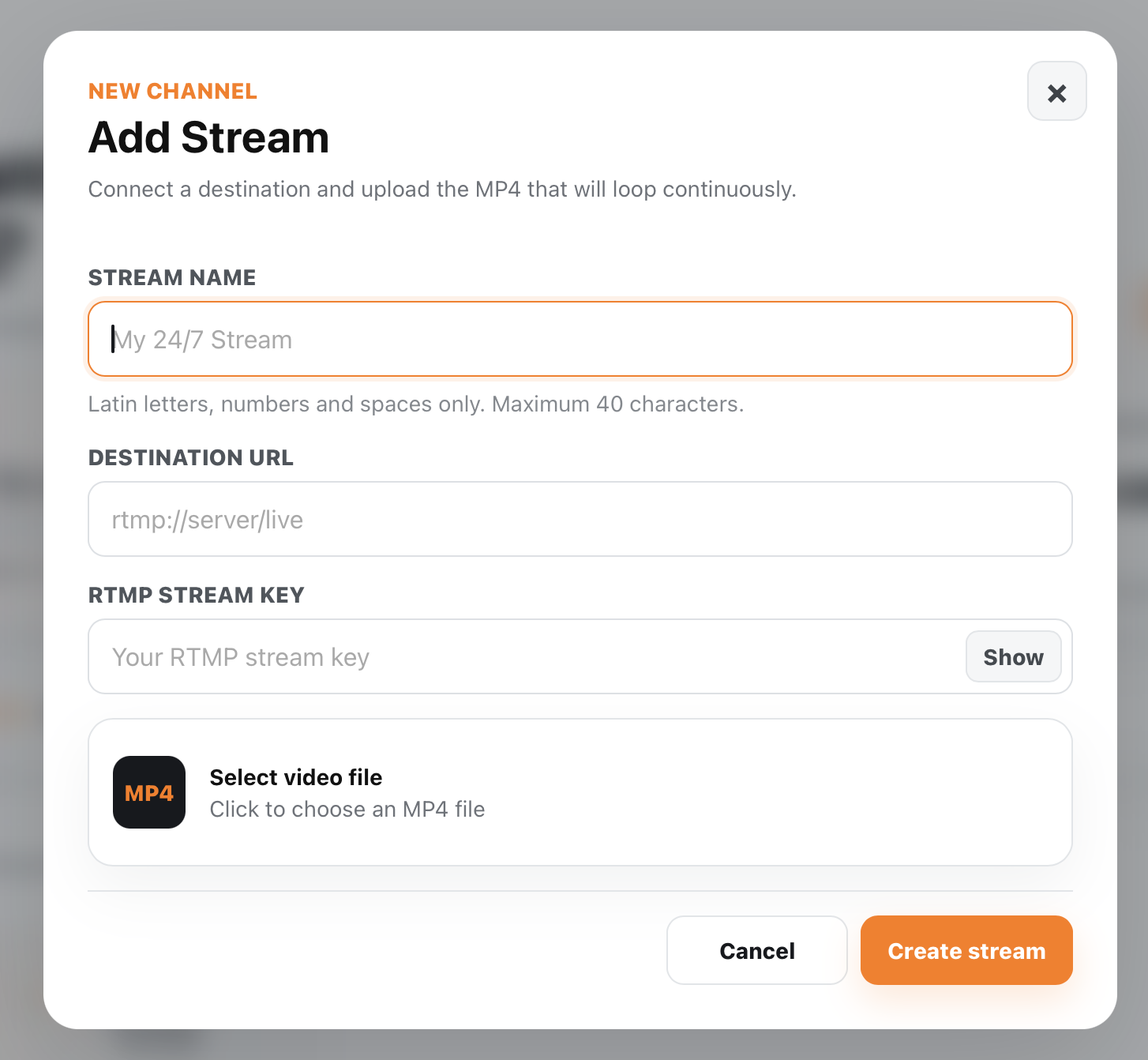
The destination URL tells SAIUNES where to send the broadcast. The RTMP stream key identifies the correct channel or live event. Read what an RTMP stream key is before sharing screenshots or asking for support, because the key must remain private.
Step 3: Select Create Stream
Review the stream name, destination URL, stream key, and selected MP4. Then select Create stream inside the form.
SAIUNES uploads and processes the video. Processing typically takes about 10 seconds to 1 minute depending on the video's duration and file size. Larger files can take longer.
Do not close or restart the creation flow while the initial upload is still being sent. Once the upload is complete, SAIUNES continues preparing the video online.
Step 4: Wait for Ready
The stream controls become available when processing finishes and the stream reaches Ready status.
At that point, the source MP4, SAIUNES relay, RTMP destination, and 24/7 loop are configured. You can review the source and destination before broadcasting.
Step 5: Start Now or Schedule the Start
Select Start stream. Then choose one of two start options:
- Start now begins broadcasting immediately.
- Schedule start lets you choose a future local date and time.
For the complete timing controls, read how to schedule prerecorded live streams.
Step 6: Run Non-Stop or Schedule a Pause
Choose how the broadcast should end:
- Run non-stop continues until you pause it manually.
- Schedule pause stops the stream at the future date and time you choose.
You can combine a scheduled start with either nonstop playback or a scheduled pause.
Where Can the Stream Go?
SAIUNES works with destinations that provide compatible RTMP details. Depending on account permissions, this may include YouTube, Facebook, Twitch, Kick, TikTok, Instagram, or another RTMP-compatible service.
The process for obtaining the connection details is covered in how to stream video to an RTMP destination.
Prepare the Video Before Uploading
Check the complete MP4 for clear audio, correct orientation, readable text, smooth beginning and ending, and content rights. If the video loops, make sure its ending returns naturally to the opening.
Only stream videos and included material that you own or have permission to broadcast.
Monitor the Broadcast
Even a 24/7 live stream should be checked regularly. Review the status, destination warnings, source quality, copyright notices, and viewer experience.
No platform can promise that every broadcast will remain uninterrupted. Invalid destination credentials, platform restrictions, outages, or source-file problems can still affect a stream.
